
Learn›From saved house to sent offer
From saved house to sent offer.
Driving For Deals and EstiMate share one account and one set of houses. The house you save on the street is the house you price, with its address and your photos already in the project, so nothing is typed twice.
In this lesson
- Save the house on a drive
- Start the estimate from the saved house
- Walk it with EstiMate
- Send the offer
- Send it to Apex, if you use it
-
1
Save it on a drive
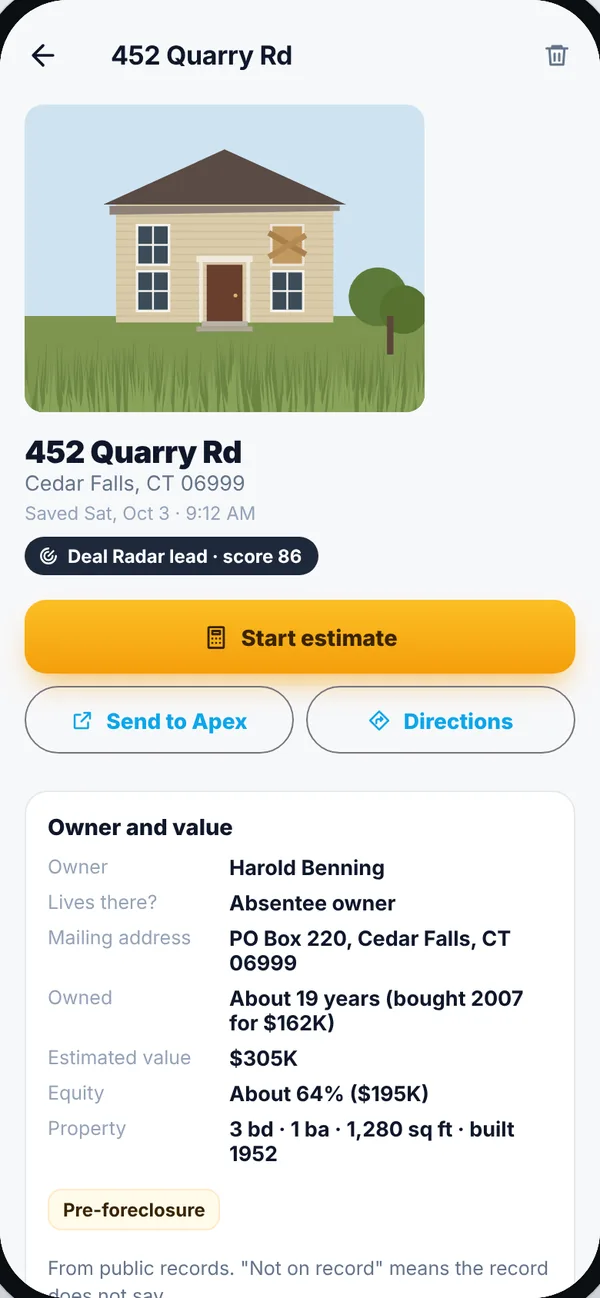
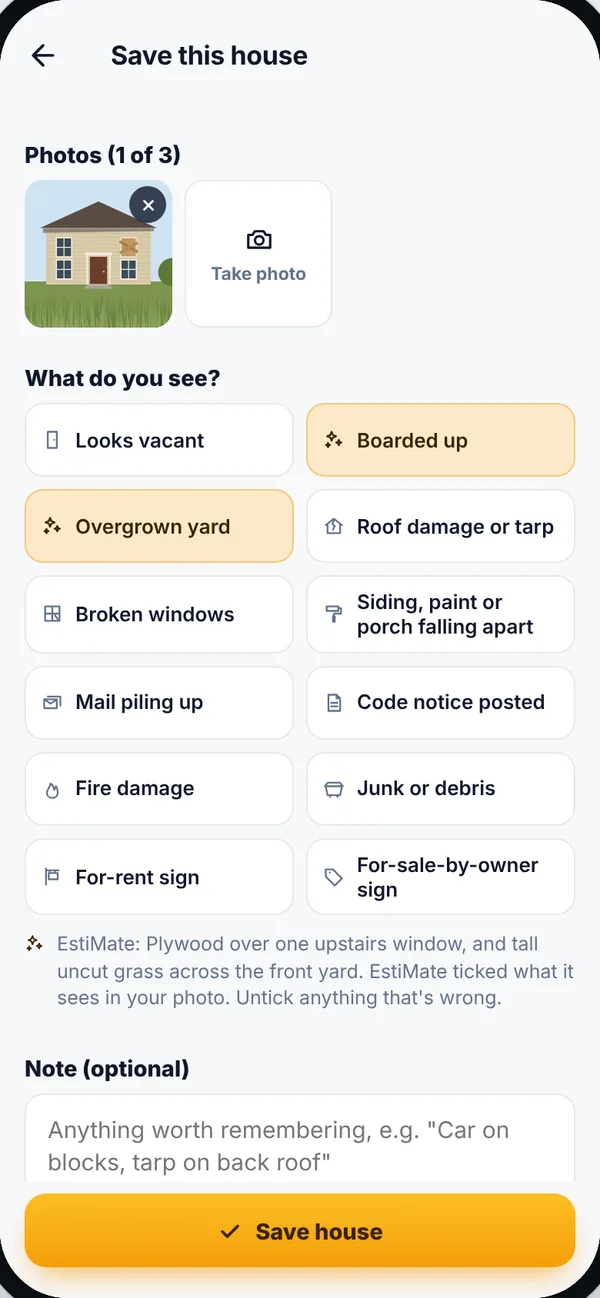
At a house worth a look, tap Save this house: the address, up to three photos and what you saw. When your account has AI credits, the owner, the value and the equity are looked up once by themselves, so you can tell from the car whether it is worth pricing.
New to Driving For Deals? Find houses with Driving For Deals covers the drive itself.
-
2
Tap Start estimate
In the EstiMate app, open the house from Saved houses and tap Start estimate. It makes a new project at that address, the same way a typed address does:
- Is this the one? The address is already filled in. Check it and confirm.
- Which rooms does it have? The bedrooms and bathrooms come from the public records. Add what they miss, such as a basement or an addition.
- Your photos come along. The photos you took on the drive go into the project by themselves.
From then on, the button on the saved house says Open estimate and takes you straight to it.
A new project is free for a week on the phone, from your first property, and needs a plan after that. When the week is over, Start estimate says so, and View Pricing & Upgrade opens the plans.
-
3
Walk it with EstiMate
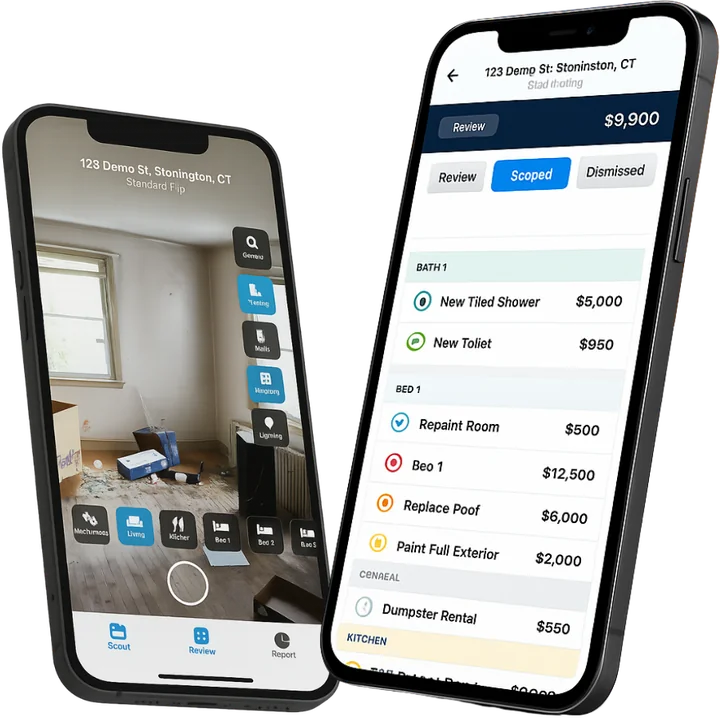
Photograph the house room by room. EstiMate names the work it can see and prices every line at your rates, and the repair cost and your maximum allowable offer build as you go. Price a rehab from your phone shows it step by step.
-
4
Send the offer
When the number works, send it from the project, on the phone or at estimate.reilink.com. Every version comes from the same scope:
- The offer as a live web page. Your buyer or lender opens it in a browser, with no login, and you are told when they read it.
- A PDF with the photos in it. Every repair sits beside the photo that proves it.
- A proposal they can sign in the browser.
-
5
Send it to Apex, if you use it
With Apex Vivus on your account, Send to Apex on the saved house makes it a new lead in your CRM, with Driving For Deals as the source. If Apex already has a lead at that address, the visit is added to that lead instead. Then the button says Open in Apex.
Start the estimate first and the lead is linked to it, so the numbers are one tap away from the lead.
Saved once. Used everywhere.
-
Into EstiMate
With Start estimate:
- The address, filled in
- Your photos of the house, in the project
-
Into Apex Vivus
With Send to Apex:
- The address, and the owner’s name when the records have it
- The owner’s phone and email, when you found them
- What you saw, your note and your photos, as a note on the lead
- The estimate, when the house has one
