Learn›Find houses with Driving For Deals
Find the house. Know who owns it.
Driving For Deals turns a drive through a neighbourhood into a list of houses worth a second look, each with a photo, what you saw, and the owner and value. It comes with any REILink account.
In this lesson
- Open the drive map
- Plan a route, if you like
- Record the drive
- Save a house with a photo and what you saw
- See the owner, the value and the equity
-
1
Open the map
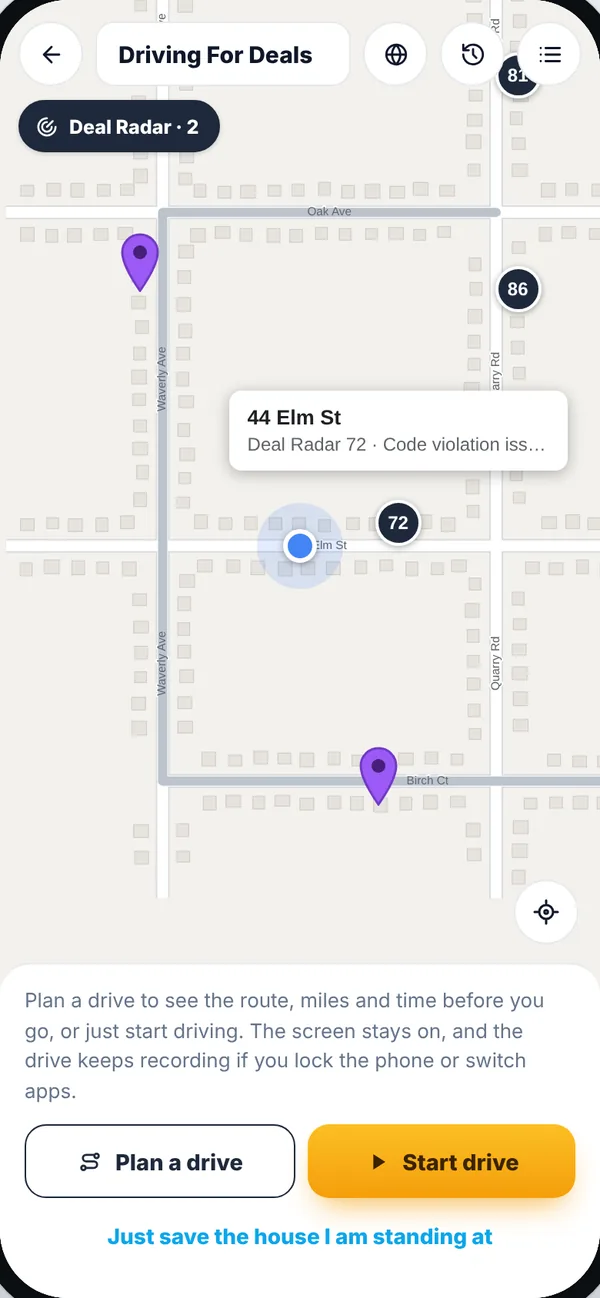
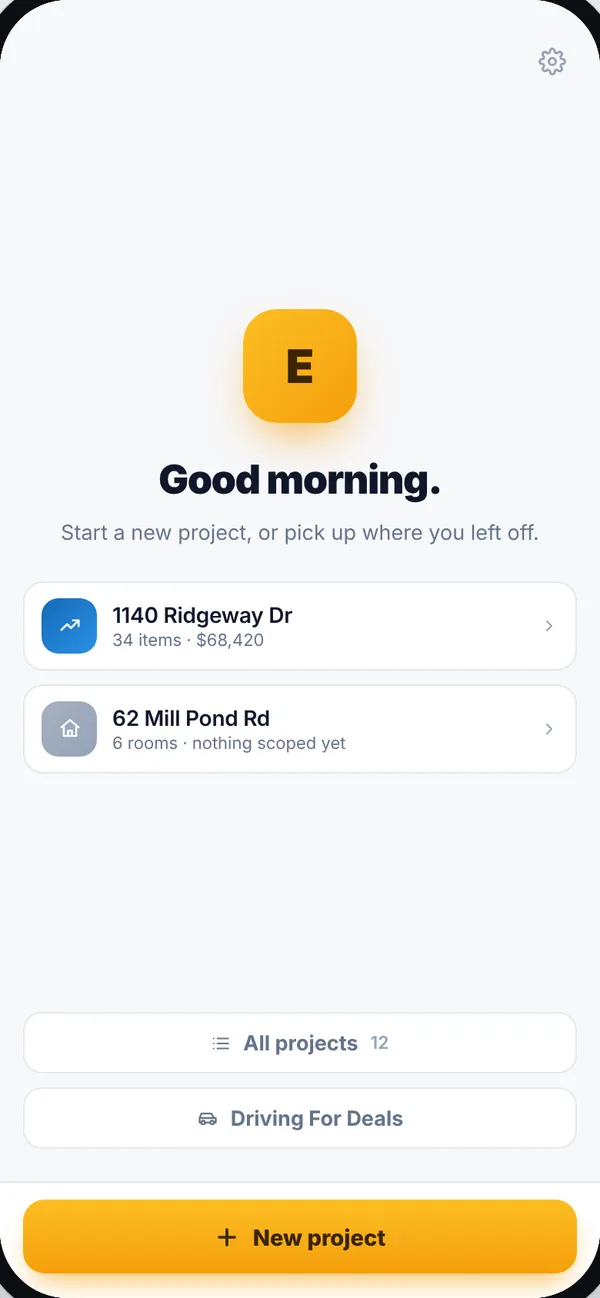
Sign in to the EstiMate app with your REILink account and tap Driving For Deals on the home screen. The map opens where you are.
Along the top: Satellite or street map, Past drives (the clock) and Saved houses (the list).
With Deal Radar, its scored leads show on the map as pins, and the Deal Radar switch shows or hides them. Without it, a small Add Deal Radar offer sits there instead; close it and it stays closed.
-
2
Plan the drive, if you like
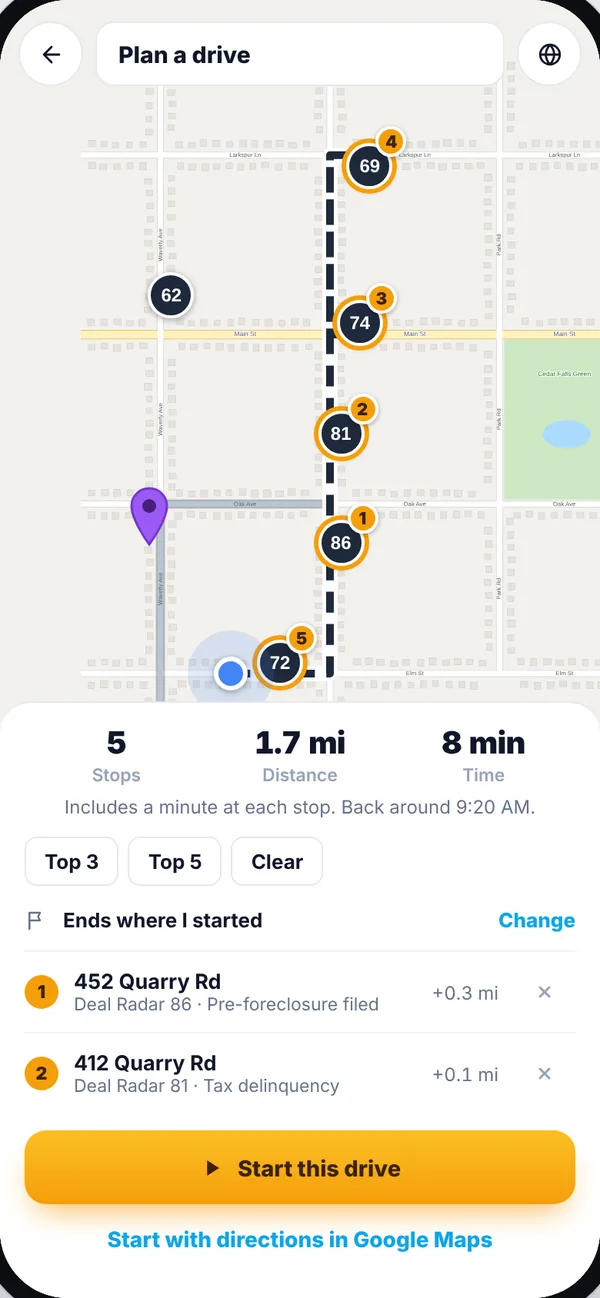
Tap Plan a drive and pick saved houses and Deal Radar leads on the map, or tap Top 3 or Top 5 for Deal Radar’s best scores. Then Find the best route: the stops, the miles and the time show before you leave.
Then Start this drive, or Start with directions in Google Maps. Or skip the plan and just drive.
-
3
Start the drive
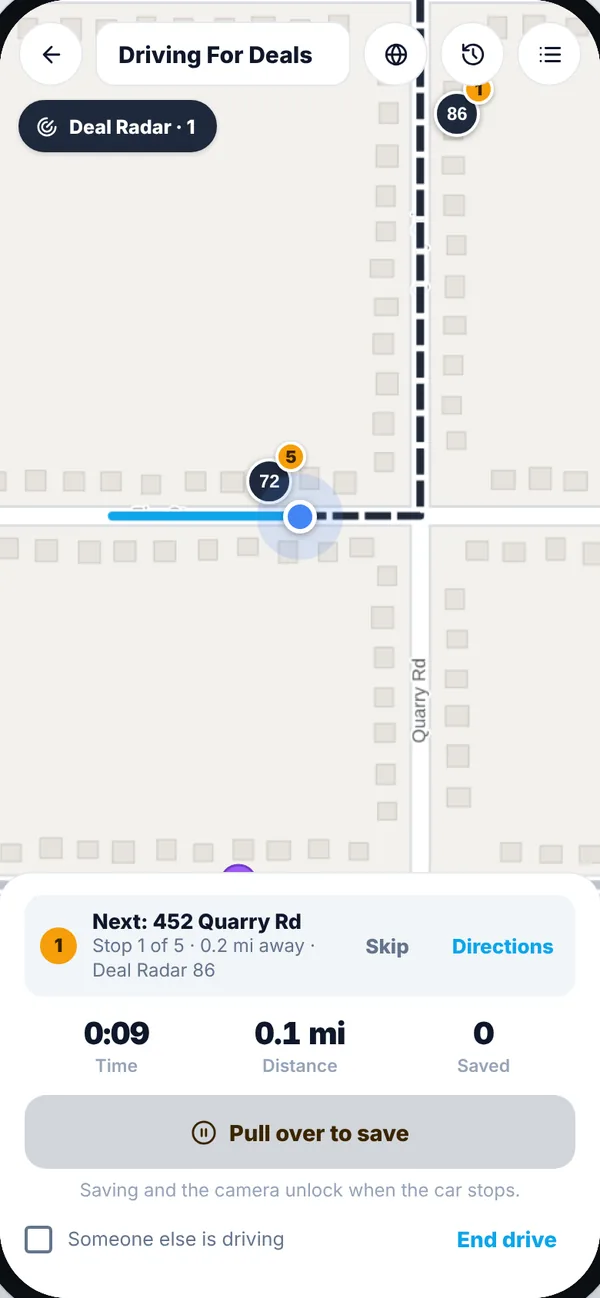
Tap Start drive. The map records every street you cover, with the time, the distance and how many houses you saved. The screen stays on, and the drive keeps recording if you lock the phone or switch apps.
Save when the car stops. While it moves, the button says Pull over to save. Tick Someone else is driving and a passenger can save on the move.
-
4
Save the house
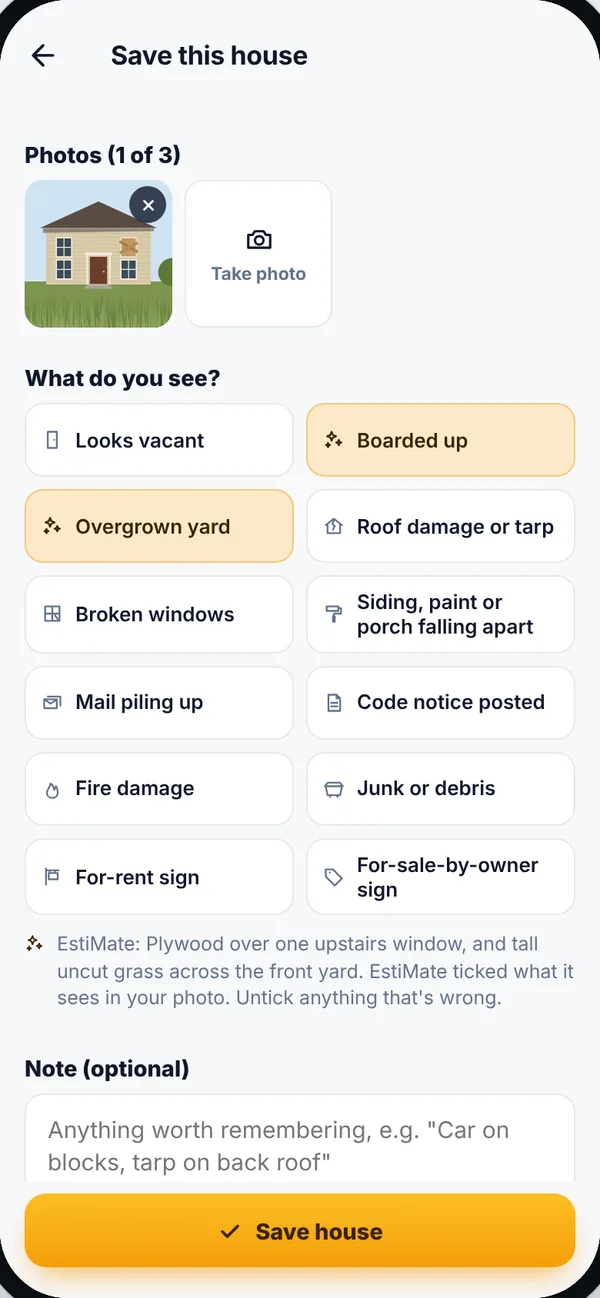
At a house worth a look, tap Save this house.
- Which house? The phone finds the address you are at and checks the houses next door: pick the right one, or tap Not listed? Type the address.
- Photos: up to three. EstiMate looks at the first one and ticks what it sees; keep or untick each.
- What do you see? Tick the rest, from Looks vacant and Boarded up to Mail piling up and a For-sale-by-owner sign.
- Add a note if you like, then Save house.
No signal? A house you save with no bars waits on the phone and uploads when you are back in range.
-
5
See who owns it
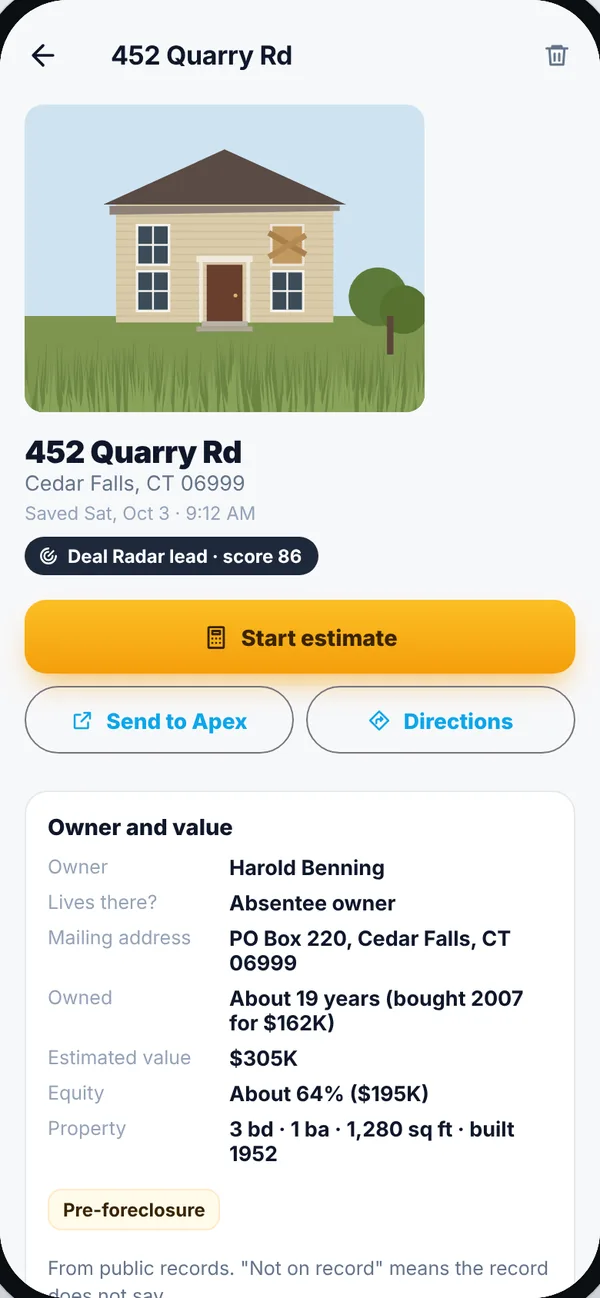
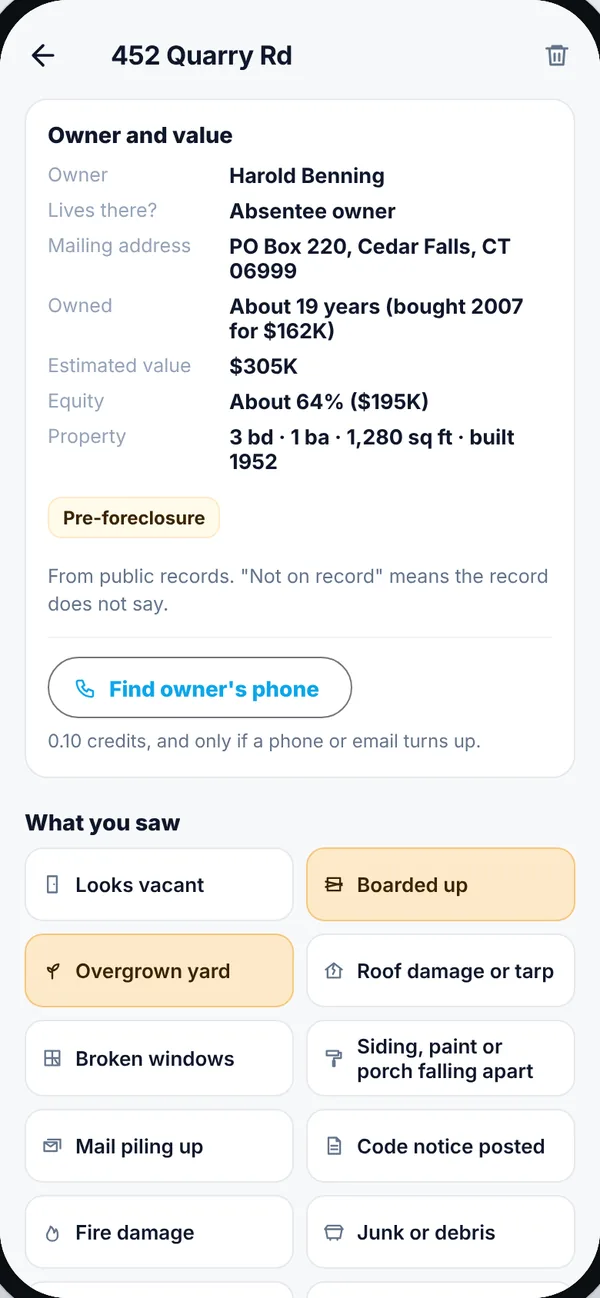
Open the house from Saved houses. Owner and value shows the owner, whether they live there, their mailing address, how long they have owned it, the estimated value and the equity. Saving a house looks this up by itself when your account has AI credits; if it couldn’t, tap Look up owner and value.
Find owner’s phone adds a phone number and email when one turns up, and warns you before you call a number on the Do Not Call list.
AI credits: the owner and value, the owner’s phone and EstiMate’s look at a photo each use credits, charged only when they work. When your account has credits, saving a house starts the owner and value, and your first photo starts EstiMate’s look. The drive and the map cost nothing.
-
6
Decide what’s next
The saved house keeps everything together, with a button for each next step:
- Start estimate opens EstiMate at that address, with your photos already in the project. See how.
- Directions opens Google Maps to the house.
- Send to Apex puts it in Apex Vivus as a lead, for accounts with Apex.
When you are done, tap End drive. It asks first; the route goes to Past drives, and the houses stay in Saved houses.